SHARE THIS:
Search for Mouse DPI Test | Free DPI Checker For Mouse Accuracy in the web..
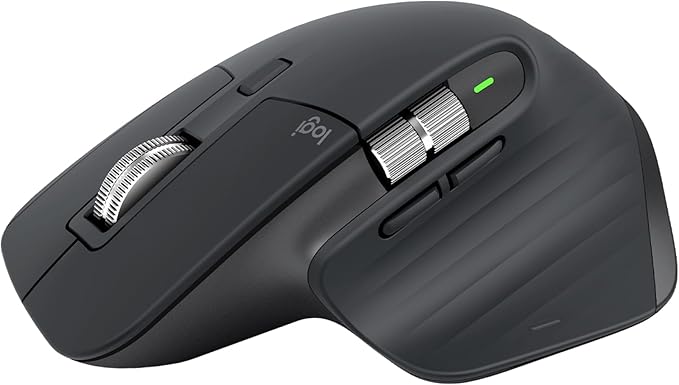



Mouse DPI Test | Free DPI Checker For Mouse Accuracy
What Is the Mouse DPI Analyzer?
Our Mouse DPI Analyzer tool helps you measure the actual DPI of your mouse based on your movement. Whether your mouse software is missing or you just want to verify its accuracy, this tool provides a quick way to test it directly in your browser.
How to Use the Tool?
Adjust Your Display Settings
Set your screen zoom to 100% and use a ruler or marked surface for accurate results. This tool is most accurate on desktop but also works on mobile/tablet with touch input.
Click and Drag
Click and hold the pointer on the tool’s draggable line and move your mouse exactly 1 inch (or the set distance). You can update this value if you want to test a longer swipe.
Check the Results
The tool will instantly calculate and display your DPI based on the distance moved. If your mouse is set to 800 DPI, and you move 1 inch, the pointer should move roughly 800 pixels.
Test Multiple Times
Try running the test a few times and take an average to get the most reliable reading. You can also use different distances for higher accuracy.
Use the DPI History
The tool automatically logs your test history during the session, allowing you to track consistency or compare multiple devices.
Why Knowing Your DPI Matters?
Gaming: Fast-paced FPS games often require lower DPI for better aim accuracy, while RTS players might prefer higher DPI for quicker map navigation.
Designing/Editing: If you’re doing detailed work in Photoshop or editing tools, lower DPI helps you stay in control.
Everyday Use: Knowing your DPI can help you tune pointer speed for your specific screen size and workflow, especially if you use multiple monitors.
Bonus Tip: Match DPI With Windows Pointer Speed
To get the most accurate feel, set your Windows or macOS pointer speed to the default mid-point. This way, the DPI reading from your mouse reflects its actual performance without software scaling interfering.
read more..
Search for Mouse DPI Test | Free DPI Checker For Mouse Accuracy in the web..
Latest links